Wednesday, March 21, 2012

// // Leave a Comment

Facebook Keyboard Shortcut Keys !!

Following are some Shortcut keys of Facebook which you can use in Chrome and Firebox Browsers !! Remember that these keys will not work on Mac :(


Chrome        Firefox                  Facebook
Alt+m           Shift+Alt+m           New Message
Alt+0            Shift+Alt+0            Help Center
Alt+1            Shift+Alt+1            Home Page
Alt+2            Shift+Alt+2            Profile Page
Alt+3            Shift+Alt+3            Manage Friend List
Alt+4            Shift+Alt+4            Message List
Alt+5            Shift+Alt+5            Notification Page
Alt+6            Shift+Alt+6            Account Settings
Alt+7            Shift+Alt+7            Privacy Settings
Alt+8            Shift+Alt+8            Facebook Fan Page
Alt+9            Shift+Alt+9            Facebook Terms
Alt+?            Shift+Alt+?              Search Box

Thanks :)

Read More

Wednesday, March 14, 2012

// // Leave a Comment

Add Flying Twitter Bird to your Blog

Yes !! You can embed a flying Twitter Bird on your Blog . . It will keep flying all your blog !!


Steps to add Flying Twitter Bird:

1. Login to your Blogger Account.
2. Navigate to Design > Edit HTML
3.  Search for </body>
4.  Paste the Below Code above </body> tag.


<script src='htttp://bloggerblogwidgets.googlecode.com/files/way2blogging.org-tripleflap.js'type='text/javascript'>
</script>
<script type='text/javascript'>var twitterAccount = &quot;prats&quot;;var tweetThisText = &quot;<data:blog.pageTitle/> : <data:blog.url/> &quot;;tripleflapInit();
</script>


5. Replace prats with your twitter account name.
6. Click on save and check your Blog

Thanks :)

Read More

Thursday, March 8, 2012

// // Leave a Comment

Now type in your Own Language using Google IME


Google Transliteration IME is an input method editor which allows users to enter text in one of the supported languages using a roman keyboard. Users can type a word the way it sounds using Latin characters and Google Transliteration IME will convert the word to its native script. Note that this is not the same as translation -- it is the sound of the words that is converted from one alphabet to the other, not their meaning. Converted content will always be in Unicode.


Google Transliteration IME is currently available for 22 different languages -Amharic, Arabic, Bengali, Farsi (Persian), Greek, Gujarati, Hebrew, Hindi, Kannada, Malayalam, Marathi, Nepali, Oriya, Punjabi, Russian, Sanskrit, Serbian, Sinhalese, Tamil, Telugu, Tigrinya and Urdu.


If you are Done with installation then follow simple steps to activate it. Before that just press Left Alt + Shift of your keyboard and try typing in your language anywhere . . If it works then no need to do following things :)
Enabling Language Bar

If the 'Language bar' option is not visible in 'Toolbars', then it needs to be enabled through control panel: 

Windows 7/Vista
  1. Control Panel -> Regional and Language Options -> Keyboard and Languages tab
  2. Click on Change keyboards... button to open Text services and input languages dialog
  3. Navigate to Language Bar tab
  4. Enable the radio button Docked in the taskbar under Language Bar section
  5. Apply all settings and try to display language bar as mentioned in previous section.

Windows XP

  1. Go to Control Panel -> Regional and Language Options -> Languages tab -> Text services and input languages (Details) -> Advanced Tab
  2. Make sure that under System configuration, option Turn off advanced text services is NOT checked.
  3. Go to Control Panel -> Regional and Language Options -> Languages tab -> Text services and input languages (Details) -> Settings Tab
  4. Click Language Bar
  5. Select Show the Language bar on the desktop. Click OK.
  6. If you are installing the IME for East Asian language or Right-To-Left language, go to Control Panel -> Regional and Language Options -> Languages Tab
  7. Make sure that options Install files for complex scripts and right to left languages and Install files for East Asian languages are checked in the checkboxes. This requires installation of system files and the system will prompt to insert the Operating System Disc.
  8. Apply all settings and try to display language bar as mentioned in previous section.

IME Shortcut

A shortcut key sequence can be applied to the IME as follows which can be used to quickly enable IME for any in-focus application: 

Windows 7/Vista

  1. Control Panel -> Regional and Language Options -> Keyboard and Languages tab
  2. Click on Change keyboards... button to open Text services and input languages dialog
  3. Navigate to Advanced Key Settings tab
  4. If Google <Language> Input is not listed in Installed Services box, then click Add and in Add Input language dialog box, go to the language for which you want to enable IME in the languages tree and expand the node. Check the checkbox next to Google <Language> Input in the list.
  5. In Hot keys for input languages Select To <Language> - Google <Language> Input
  6. Press Change Key Sequence
  7. Select Enable Key Sequence
  8. Select option like Left ALT + SHIFT + Key 1
  9. Apply all changes
  10. Now opening an application like notepad and pressing Left ALT + SHIFT + Key 1 should open the IME.

Windows XP

  1. Control Panel -> Regional and Language Options -> Languages tab -> Text services and input languages (Details) -> Settings Tab
  2. If either <Language> or Google <Language> Input not listed in Installed Services box, then click Add and in Add Input language dialog box, select <Language> in Input language and Google <Language> Input in Keyboard layout/IME. Click OK
  3. Press Key Settings
  4. In Hot keys for input languages, Select Switch to <Language>-Google <Language> Input
  5. Press Change Key Sequence
  6. Select Enable Key Sequence
  7. Select option like Left ALT + SHIFT + Key 1
  8. Apply all changes
  9. Now opening an application like notepad and pressing Left ALT + SHIFT + Key 1 should open the IME.

Source : Google

Thanks :)

Read More

Thursday, March 1, 2012

// // 3 comments

Send Free SMS using Gmail

Gmail Allows you to Send free SMS to your Friends . . Just follow the simple steps :)

1. Login to your Gmail Account
2. On your left hand side Chat panel you can see your friends list. Click on any friend and under that you can find option of  "Send SMS"

3. Add your friends number and say Save . . It will allow you to send Free SMS to supported carriers . .
4. Check Supported Mobile Operator's here
5. Enjoy Credit of  50 SMS per day :)

Thanks :)


Read More

Tuesday, February 28, 2012

// // 1 comment

Is your password one of this ?

Password guessing is one of the fastest technique to hack any account. According to a survey by Sophos 33% of the people use the same passwords. What this means that if a hacker can get inside a person's facebook account, he can also get inside his/her other account using the same password.


If yes then change it now !! Any one can Guess it :)


Thanks :)

Read More

Saturday, February 25, 2012

// // Leave a Comment

How To Buy BSNL Tablet ?


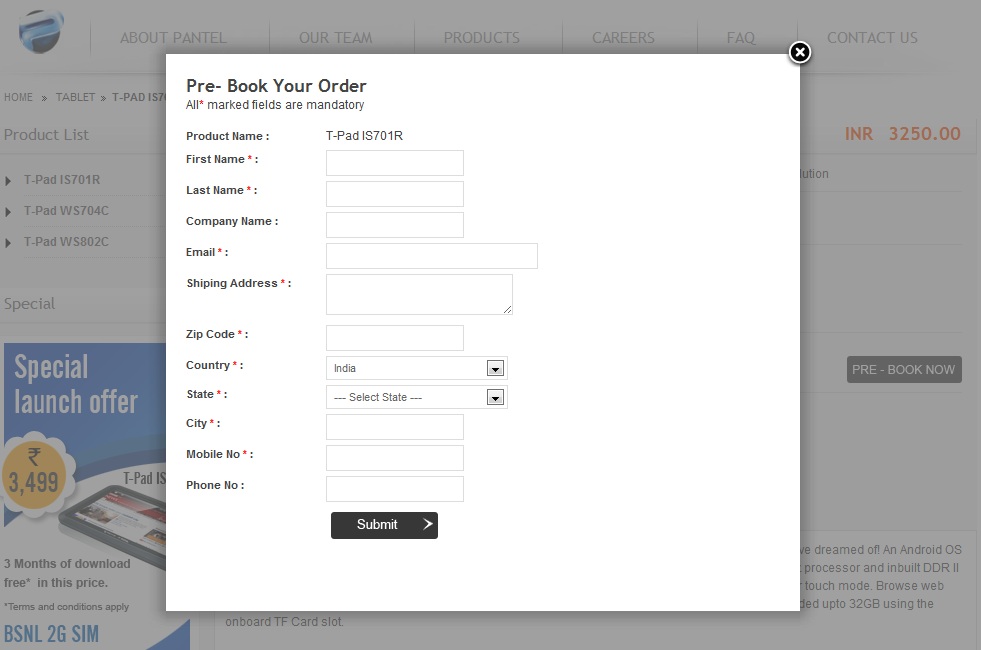
All the three tablets are up for pre-orders now on their web-site. Since out of all the three, T-Pad IS701R is the cheapest and most favourable from students point of view, we’ll first talk about the same.
You can order your T-Pad now !! 

Click on the button “PRE – BOOK NOW” and fill in the form which comes up with all the necessary details and click “ORDER NOW” once you are done with the form.
Congrats !! You are done :)
Thanks :)
Read More
// // 3 comments

Comparison Between Aakash and BSNL Penta Tablet

Since you already saw the Penta T-Pad IS 701R, Lets compare the specifications of it with both the Aakash tablets. As there are three BSNL tablet, the only tablet that come close to Aakash tablet is BSNL  Penta T-Pad IS 701R. The following table is showing the comparison between Aakash, Ubislate 7 and  Penta T-Pad IS 701R.


Thanks :)

Read More